
Was this page helpful?
Connect Your GCP VPC to ScyllaDB Cloud
This guide explains how to create a PSC endpoint in your GCP project to connect your application to a ScyllaDB Cloud cluster over GCP Private Service Connect.
Before you begin: Complete Configure GCP Private Service Connect in ScyllaDB Cloud and have the Service Attachment ID ready.
Prerequisites
The Service Attachment ID from the ScyllaDB Cloud PSC configuration. See Retrieve the Service Attachment ID for details.
A ScyllaDB driver that supports Private Connectivity. See below for details.
Driver Requirement
Private Connectivity is a ScyllaDB Cloud capability that maintains token and shard awareness over PrivateLink and Private Service Connect. To use the feature, a native ScyllaDB Cloud driver that supports Private Connectivity is required. Other drivers, including Cassandra and DataStax drivers, are incompatible with the ScyllaDB Cloud Private Connectivity feature.
The following ScyllaDB drivers currently support Private Connectivity:
Driver |
Since Version |
Documentation |
|---|---|---|
3.29.9 |
Documentation coming soon |
|
4.19.0.7 |
Documentation coming soon |
|
1.17.1 (recommended 1.18.1 or later) |
||
1.6.0 with the |
Support for additional drivers will be added in future releases.
Step 1: Create the PSC Endpoint
You can create the endpoint in the Google Cloud UI or using the gcloud
command.
Open the Google Cloud Console.
Go to Network Services > Private Service Connect.
Select the Connected endpoints tab.
Click Connect endpoint.
Configure the settings:
Target — Make sure to select Published Service.
Target details — Enter the Service Attachment ID you obtained in ScyllaDB Cloud.
Endpoint name — A tag to identify the endpoint.
Network — Select the VPC from which you’ll access the endpoint service. See the GCP documentation on VPC networks for details on creating and managing VPC networks.
Subnetwork — Select the subnet in your VPC that will host the PSC endpoint. The endpoint receives an internal IP address from this subnet. See the GCP documentation on working withsubnetworks.
IP address — Create a new internal IP address or select an existing reserved internal IP.
Enable global access (optional) — Enabling global access can allow access from different regions, but this also adds latency and cross- regional traffic. Leave unchecked. The recommended setup is one PSC connection per datacenter.
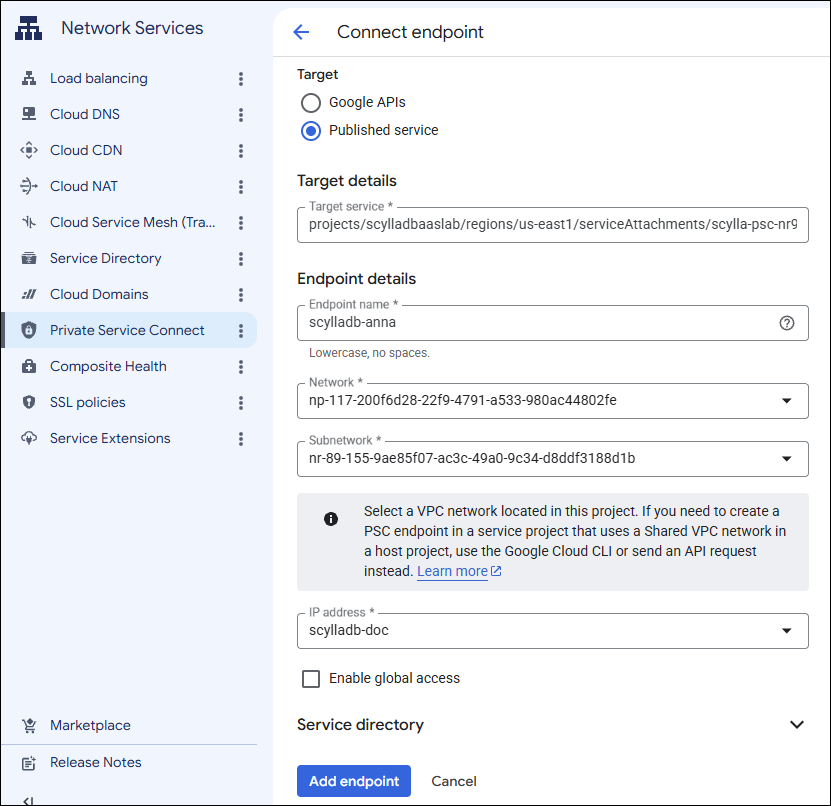
Click Add endpoint.
Reserve an internal IP in a subnet of your VPC.
gcloud compute addresses create my-psc-ip \
  --project <PROJECT> --region <REGION> \
  --subnet <SUBNET> \
  --addresses <Desired IP>
The region must match the service attachment’s region. For example, a
us-east1attachment needs aus-east1subnet.Create the endpoint (forwarding rule) in the VPC:
gcloud compute forwarding-rules create my-psc-endpoint \
  --project <PROJECT> \
  --region <REGION> \
  --network <YOUR_VPC_NAME> \
  --address my-psc-ip \
  --target-service-attachment=projects/<PRODUCER_PROJECT>/regions/<REGION>/serviceAttachments/<ATTACHMENT_NAME>
Verify that the endpoint has been successfully created:
gcloud compute forwarding-rules describe my-psc-endpoint \
  --project <PROJECT> --region <REGION> \
  --format='value(pscConnectionStatus,IPAddress)'
See also Access published services through endpoints in the Google Cloud documentation.
Step 2: Verify the PSC Endpoint (Optional)
To review the PSC endpoint configuration in your GCP project, run the following command:
gcloud compute forwarding-rules describe <psc-endpoint-name> \
  --project <PROJECT> --region <REGION> \
  --format='value(pscConnectionStatus,IPAddress)'
It will display the status of the attachment and the endpoint’s IP address. Example:
gcloud compute forwarding-rules describe test-psc-endpoint \
  --project scyllaproduct --region us-east1 --format='value(pscConnectionStatus,IPAddress)'

ACCEPTED        10.142.0.8
You can also use a Network Intelligence Center connectivity test to verify
that a VM can reach the cluster via PSC endpoint on TCP port 9000,
the ScyllaDB CQL port. Replace the placeholder values with values from your
GCP environment:
gcloud network-management connectivity-tests create scylladb-cloud-psc-test \
  --source-instance=projects/<gcp-project>/zones/<zone>/instances/<vm> \
  --destination-ip-address=<psc-endpoint-ip> \
  --destination-port=9000 \
  --protocol=TCP \
  --project=<gcp-project>
To run the test again after changing your network configuration:
gcloud network-management connectivity-tests rerun scylladb-cloud-psc-test \
  --project=<gcp-project>
A successful result confirms that the specified VM can reach the PSC endpoint on the ScyllaDB CQL port. It does not verify driver authentication or application-level connectivity.
Step 3: Connect Using a Compatible Driver
Use one of the ScyllaDB drivers that support Private Connectivity. See Driver requirement.
Follow the instructions provided in the Connect tab in your cluster’s UI. See Connect to Your Cluster for details.
You’ll need to provide the endpoint IP address directly in the driver connection.
See the illustrative examples below.
Example for Python:
from cassandra.cluster import Cluster
from scylladb.cloud import ClientRoutesOptions, ClientRoutesEndpoint

options = ClientRoutesOptions(
    endpoints=[
        ClientRoutesEndpoint(
            connection_id="<connection-uuid>",
            connection_addr="<endpoint-ip>",
        )
    ]
)
cluster = Cluster(client_routes_options=options)
Example for Go:
cluster := gocql.NewCluster()
cluster.WithOptions(gocql.WithClientRoutes(
    gocql.WithEndpoints(gocql.ClientRoutesEndpoint{
        ConnectionID:   "<connection-uuid>",
        ConnectionAddr: "<endpoint-ip-or-dns>",
    }),
))
Refer to your driver documentation for details:
Deleting a Cluster with a Private Service Connect Connection
Connections are not automatically deleted when you delete a cluster, as they may be used by other clusters.
Remove any connections you no longer need from Connections to avoid unnecessary GCP charges.