Was this page helpful?
Client-to-node Encryption
Overview
Client-to-node encryption ensures the confidentiality and integrity of data transmitted between client applications and ScyllaDB nodes. It mitigates the risk of man-in-the-middle (MITM) attacks, packet sniffing, and credential leakage as data moves across the network.
This kind of encryption handles transport security only. Authentication remains a separate step, performed using standard credentials: username/password with role-based access control (CQL) and access key/secret key (Alternator).
Client-to-node encryption in ScyllaDB Cloud utilizes the latest Transport Layer Security (TLS) version 1.3.
How It Works
The client connects to the cluster’s TLS endpoint.
The node presents its server certificate.
The client validates it using the ScyllaDB Cloud CA bundle.
An encrypted session is established.
Default Behavior in ScyllaDB Cloud
Client-to-node encryption is fully managed by ScyllaDB Cloud. It is enabled for all new clusters.
To ensure compatibility, ScyllaDB Cloud supports both encrypted and unencrypted connections — the default port remains open for unencrypted traffic unless encryption enforcement is enabled.
We recommend that you customize the configuration to enforce encrypted connections. As a result, the default port will be disabled, and the cluster nodes will listen for encrypted ports.
Supported Endpoints
API |
Encrypted Port |
|---|---|
CQL |
9142 |
Alternator (DynamoDB API) |
8043 |
All client APIs are exposed through encrypted endpoints, ensuring:
Data is protected in transit
Server identity is verified
Compliance with major security standards
Safe connectivity over public or private networks
Establishing Encrypted Connections
To establish an encrypted connection between clients and your cluster, you need to:
Obtain the CA public key for your cluster.
Configure the client to connect to your cluster using the key you downloaded.
Obtain the Public Key
To obtain the public key for your cluster:
Log into the ScyllaDB Cloud.
Navigate to your cluster’s Cluster Details page.
Choose the option to Download CA public key.
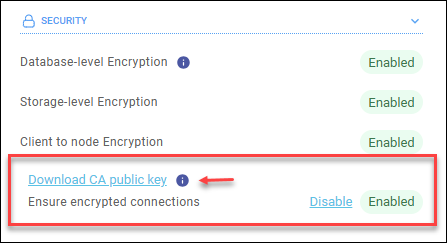
This will download the PEM format public key of your cluster, for example,
scylladb_cluster_ca.pem.Save the file locally.
Configure Your Client Driver
In your CQL or Alternator client application, configure the driver’s SSL/TLS settings. Point the configuration to the location of the CA public key file you saved. This will allow your client to validate the server certificate presented by the ScyllaDB node and establish an encrypted session.
For CQL clients, run the following CQL shell (cqlsh) command to connect to your cluster:
SSL_CERTFILE=<location of your public key> cqlsh --ssl -u scylla -p <password> <node>
Example:
SSL_CERTFILE=~/scylladb_cluster_ca.pem cqlsh --ssl -u scylla -p aa1122cc3DD456 node-0.aws-us-east-1.593d90421f9dc28e6078.clusters.scylla.cloud
To obtain cluster-specific instructions, go to your cluster’s page in the ScyllaDB Cloud application and see the Connect page.
Enforcing Encrypted Connections
You can configure ScyllaDB to enforce encrypted connections, ensuring that all traffic between clients and your cluster is encrypted.
Go to the Security section of your cluster page.
Click Enable next to Ensure encrypted connections.
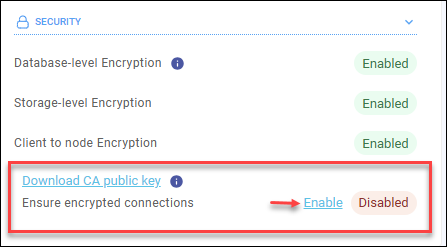
This will terminate existing unencrypted connections and prevent any unencrypted traffic between clients and ScyllaDB nodes.