Was this page helpful?
Connect Your AWS VPC to ScyllaDB Cloud
This guide explains how to create an Interface VPC Endpoint in your AWS account to connect your application to a ScyllaDB Cloud cluster over AWS PrivateLink.
Before you begin: Complete Configure AWS PrivateLink in ScyllaDB Cloud and have the Service Name ready.
Prerequisites
The Service Name from the ScyllaDB Cloud PrivateLink configuration. See Retrieve the Service Name for details.
A ScyllaDB driver that supports Private Connectivity. See below for details.
Driver Requirement
Private Connectivity is a ScyllaDB Cloud capability that maintains token and shard awareness over PrivateLink and Private Service Connect. To use the feature, a native ScyllaDB Cloud driver that supports Private Connectivity is required. Other drivers, including Cassandra and DataStax drivers, are incompatible with the ScyllaDB Cloud Private Connectivity feature.
The following ScyllaDB drivers currently support Private Connectivity:
Driver |
Since Version |
Documentation |
|---|---|---|
3.29.9 |
Documentation coming soon |
|
4.19.0.7 |
Documentation coming soon |
|
1.17.1 (recommended 1.18.1 or later) |
||
1.6.0 with the |
Support for additional drivers will be added in future releases.
Step 1: Create the Interface VPC Endpoint
Open the Amazon VPC console at https://console.aws.amazon.com/vpc/.
In the navigation pane, choose Endpoints.
Click Create endpoint.
Configure the settings:
Name — A tag to identify the endpoint.
Type — Choose PrivateLink Ready partner services.
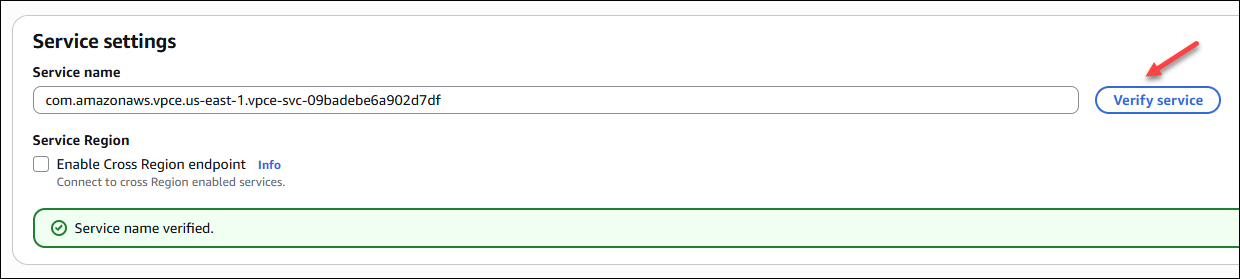
Service name — Enter the Service Name you obtained in the previous guide and click Verify service.
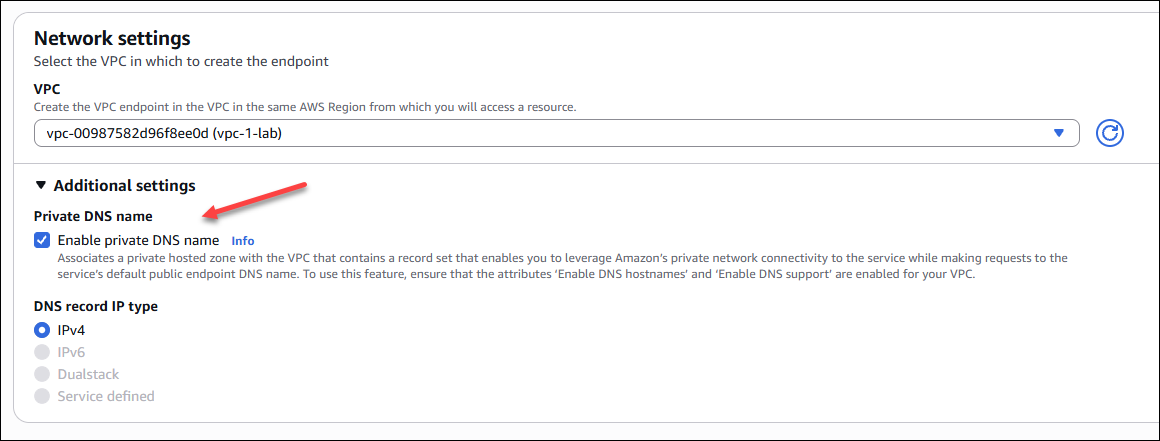
VPC — Select the VPC from which you’ll access the endpoint service.
Enable private DNS — Enable this option. It allows your application to use the standard endpoint DNS name without requiring any driver configuration overrides, simplifying driver connection configuration.
Subnets — Select subnets in the Availability Zones where your application runs.
Match Availability Zones using AZ IDs (for example,
use1-az1), not AZ names (for example,us-east-1a). AZ names can map to different physical zones across AWS accounts, while AZ IDs are consistent. See Configure Availability Zones for details.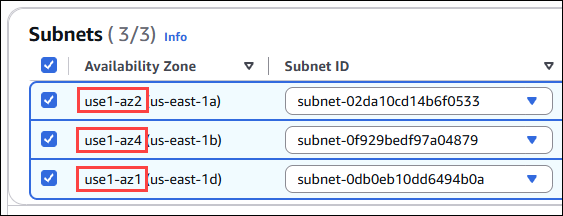
Click Create endpoint.
See also Connect to an endpoint service as the service consumer in the Amazon AWS documentation.
Step 2: Connect Using a Compatible Driver
Use one of the ScyllaDB drivers that support Private Connectivity. See Driver requirement.
Follow the instructions provided in the Connect tab in your cluster’s UI. See Connect to Your Cluster for details.
The required configuration depends on whether you enabled private DNS when creating the endpoint.
With AWS Private DNS Enabled (Recommended)
If you enabled private DNS in the previous step, DNS resolution is handled automatically. No additional driver configuration is needed.
Without DNS
If you prefer not to use private DNS, provide the endpoint IP address directly in the driver connection. See the illustrative examples below.
Example for Python:
from cassandra.cluster import Cluster
from scylladb.cloud import ClientRoutesOptions, ClientRoutesEndpoint

options = ClientRoutesOptions(
    endpoints=[
        ClientRoutesEndpoint(
            connection_id="<connection-uuid>",
            connection_addr="<endpoint-ip>",
        )
    ]
)
cluster = Cluster(client_routes_options=options)
Example for Go:
cluster := gocql.NewCluster()
cluster.WithOptions(gocql.WithClientRoutes(
    gocql.WithEndpoints(gocql.ClientRoutesEndpoint{
        ConnectionID:   "<connection-uuid>",
        ConnectionAddr: "<endpoint-ip-or-dns>",
    }),
))
Refer to your driver documentation for details:
Deleting a Cluster with a PrivateLink Connection
Connections are not automatically deleted when you delete a cluster, as they may be used by other clusters.
Remove any connections you no longer need from Connections to avoid unnecessary AWS charges.