
Was this page helpful?
Configure GCP Private Service Connect in ScyllaDB Cloud
This guide explains how to create a GCP Private Service Connect (PSC) Service Attachment for a ScyllaDB Cloud cluster. After completing this guide, you will have a Service Attachment ID to use when creating the PSC endpoint in your GCP project.
Private Connectivity is configured per datacenter. If your cluster spans multiple datacenters, configure a separate private connection for each one.
Prerequisites
ScyllaDB Cloud account with the Premium plan.
A GCP cluster (ScyllaDB-hosted or BYOA) created with the Private Connection network type enabled.
A dedicated NAT subnet in the cluster VPC. See Subnet Planning below.
Subnet Planning
GCP Private Service Connect requires a dedicated NAT subnet in the cluster VPC. Plan the subnet size before creating the cluster because it cannot be resized after Private Service Connect endpoints are created.
Each PSC endpoint (consumer) uses one IP address from the NAT subnet.
Resizing the NAT subnet requires recreating all connected PSC endpoints.
If you expect multiple consumers to connect to the cluster, allocate enough IP addresses to accommodate future growth.
Recommendation: Use a /23 or larger NAT subnet for clusters that use
Private Connectivity.
Step 1: Create the Cluster
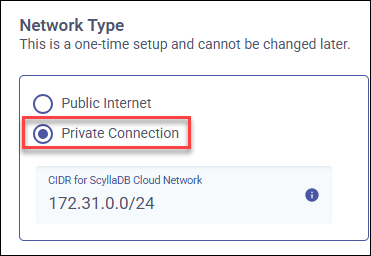
When creating a new cluster, select Network Type> Private Connection.
Note
Private Connectivity cannot be configured for existing clusters that were created with the Public Internet option enabled.
Step 2: Set Up the Private Service Connect Connection
Once the cluster is launched, go to the Connections tab and click New Connection.
Select Private Service Connect.
Configure the connection:
Connection name — A name to identify the connection.
Data Center — The datacenter for this connection. If your cluster is deployed across multiple datacenters, configure a separate private connection for each datacenter.
Allowed GCP Projects — The ID(s) of your GCP project(s) that will use the connection.
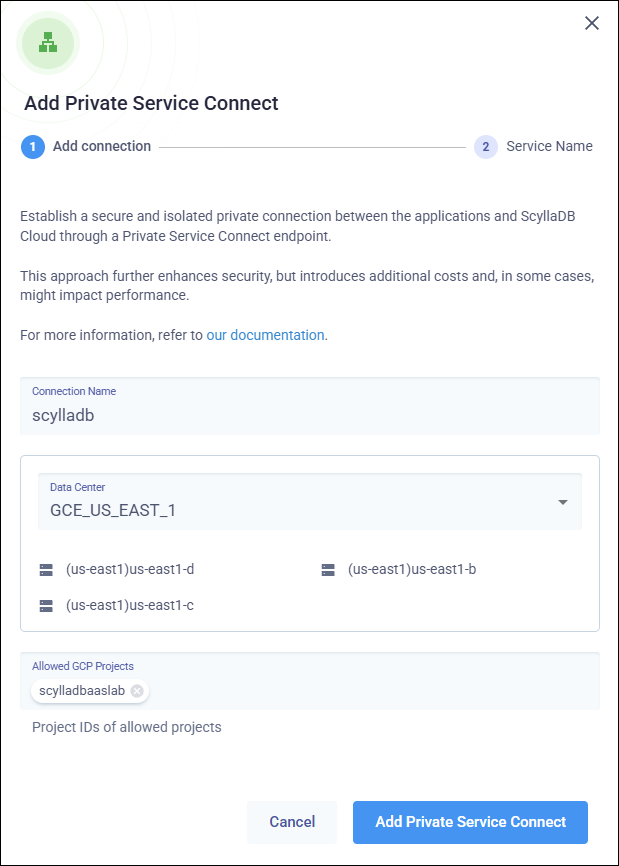
Click Add Private Service Connect to create the connection. This can take 10–15 minutes. The connection status will change from Processing to Active once ready, or Error if something went wrong.
Step 3: Retrieve the Service Attachment ID
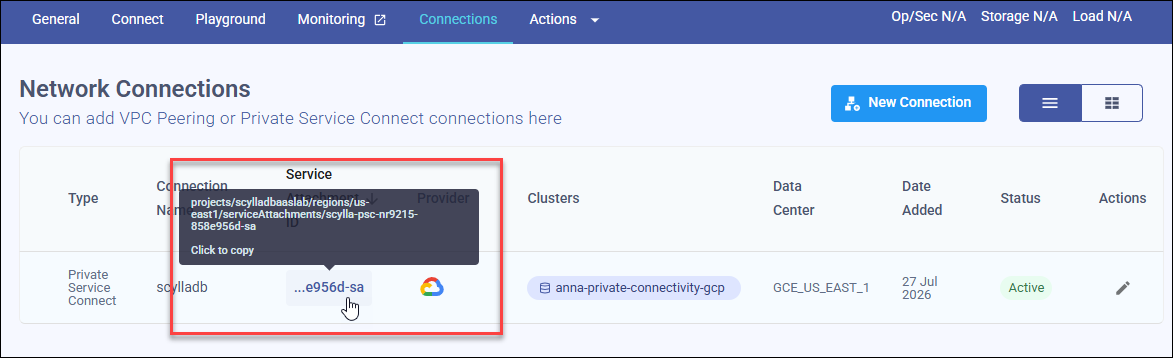
Once the connection is active, copy and save the Service Attachment ID. You will need it when creating the PSC endpoint in your GCP project.
To copy the Service Attachment ID, click it in the Connections tab:
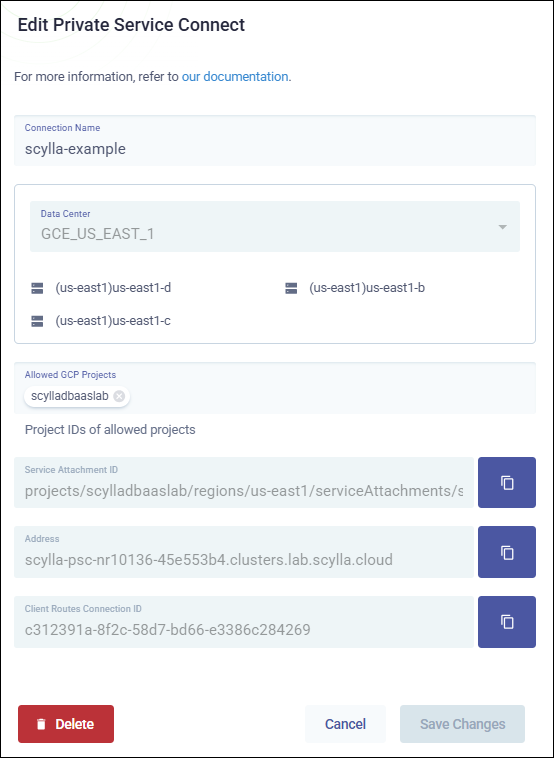
To view all connection details, click the edit icon in the Actions column to view the Edit Private Service Connect dialog. It displays:
To view all connection details, click the edit icon in the Actions column. The Edit Private Service Connect dialog will display:
Service Attachment ID - Required when you create the PSC endpoint in your GCP project.
Address - The DNS name applications use to connect to the database through GCP Private Service Connect.
Client Routes Connection ID - The unique ID that a compatible ScyllaDB driver uses to retrieve connectivity information for this private connection.
Now you can connect to the service. See the Connect Your GCP VPC to ScyllaDB Cloud guide for instructions.