
Was this page helpful?
Vector and Text Search Deployments
Before you work with Vector and Text Search, you need to ensure that the Vector and Text Search feature is enabled for your cluster. Enabling the feature involves adding indexing nodes to the cluster, with the possibility of deploying multiple nodes in each Availability Zone (AZ).
You can enable Vector and Text Search on new and existing clusters, including free trial clusters.
Vector and Text Search on Free Trial Clusters
You can enable Vector and Text Search on a free trial cluster to explore similarity search without any cost. Free trial clusters support only the smallest available indexing node size:
AWS —
t4g.medium(2 vCPUs, 4 GiB RAM)GCP —
e2-medium(2 vCPUs, 4 GiB RAM)
To get started:
Sign up for a ScyllaDB Cloud account if you don’t have one.
Create a free trial cluster and enable the Vector and Text Search option (see Creating a New Cluster with Vector and Text Search Enabled).
Connect to your cluster and follow the Quick Start Guide.
The free trial is limited to one cluster per account. For larger instance types and production workloads, upgrade to a paid plan.
Vector and Text Search Availability
- ScyllaDB VersionVector and Text Search is available on clusters running ScyllaDB 2025.4.3 or later. The full text search part of the feature is available in ScyllaDB Cloud starting with ScyllaDB version 2026.3.0.
- Instance TypesSee Supported Instance Types for a complete list of supported instance types.
Feature Compatibility Matrix
The following table shows which ScyllaDB version is required for each Vector and Text Search feature:
ScyllaDB Version |
Features |
|---|---|
2026.3.0 |
Full text search, building local vector indexes on non-primary-key partition columns to improve filtering performance. |
2026.2.0 |
Cassandra SAI vector index and LangChain compatibility, migrating indexes to use different set of options, vector similarity search for Alternator using lists of numbers, row expiration on vector-indexed tables via per-row TTL, filtering on non-primary-key columns with global and local vector indexes. |
2026.1.0 |
Filtering, quantization, getting similarity values, real-time ingestion. |
2025.4.3 |
Internal authorization providing the maximal privacy of data. |
2025.4.0 |
Basic vector search: vector data type, HNSW indexing, ANN queries, per-partition and global indexes. |
Node Placement and Availability Zones
ScyllaDB Cloud deploys indexing nodes alongside your ScyllaDB storage nodes
and, by default, spreads them across the cluster’s Availability Zones (AZs) to
provide redundancy. You control how many indexing nodes are deployed through
the nodeCount parameter (in the API) or the node-count selector (in the
UI). The number of indexing nodes does not have to match the number of
storage nodes.
How you place indexing nodes relative to your storage nodes affects three things: the amount of cross-zone network traffic, query latency, and the failure domain that vector search can tolerate. The two topologies below describe the most common choices for a cluster with a replication factor of 3 (RF=3) deployed across three AZs.
Recommended Topology: One Node per Availability Zone
For a production cluster with RF=3 spread across three AZs, the recommended topology is to deploy one indexing node in each AZ (three indexing nodes in total). In this configuration:
Every ScyllaDB storage node has an indexing node in the same Availability Zone. ANN query traffic between a storage node and its vector index stays within the zone, which keeps latency low and avoids cross-AZ data transfer charges.
High availability is zonal: each AZ holds a full, independently usable copy of the vector index. The cluster can lose an entire Availability Zone and still serve vector queries from the surviving zones.
This topology delivers the lowest and most uniform query latency and is the best choice for latency-sensitive or high-throughput workloads.
Cost-Optimized Topology: Fewer Indexing Nodes than Storage Nodes
To reduce the cost of the Vector and Text Search tier, ScyllaDB Cloud also supports deploying fewer indexing nodes than ScyllaDB storage nodes. A common example is a three-node ScyllaDB cluster (RF=3, one storage node per AZ across three AZs) served by two indexing nodes instead of three.
Two indexing nodes still keep the vector index redundant — if one node fails, the other continues to serve ANN queries — while removing the cost of the third node. Because only two of the three AZs host an indexing node, this topology has the following trade-offs:
Cross-zone traffic. The storage node in the AZ that has no local indexing node must route its ANN queries to indexing nodes in the other AZs and receive the results back across the AZ boundary. These redirected queries are load-balanced across the indexing nodes in the remaining zones, so no single zone absorbs all of the cross-zone traffic. This generates cross-zone (inter-AZ) network traffic, which is billed as cloud data transfer. This traffic scales with your query rate, so a low-QPS workload produces only a small volume and the additional cost is usually negligible. The higher your sustained QPS, the more cross-zone data transfer you should expect to pay for.
Slightly higher latency for one zone. Queries that are coordinated by the storage node in the AZ without a co-located indexing node incur one extra network hop across Availability Zones. This adds a small amount of latency (typically on the order of one to a few milliseconds, depending on the cloud provider and region) to those queries only. Queries served within a zone that has a local indexing node are not affected.
Regional instead of zonal high availability. With an indexing node in only two of the three AZs, vector search is no longer self-sufficient in every zone. The deployment still tolerates the failure of a single indexing node (or its AZ), because the remaining node keeps serving queries — so high availability is provided at the regional level. However, it is no longer zonal: the AZ without a local node depends on cross-zone access for vector search and would lose vector search capability if it became isolated from the zones that host the indexing nodes.
Note
This trade-off applies only to the Vector and Text Search tier. Your ScyllaDB storage nodes remain RF=3 across all three AZs, so the durability and availability of your primary data are unchanged, and standard CQL reads and writes continue to be served locally in every zone. See Configure Availability Zones for how AZ placement affects the storage layer.
Choose the cost-optimized topology when you want to lower Vector and Text Search infrastructure costs and your workload has a low-to-moderate query rate and can tolerate slightly higher latency for one zone. Choose the recommended one-node-per-AZ topology when you need uniform low latency and zonal high availability.
Creating a New Cluster with Vector and Text Search Enabled
You can create a new cluster with Vector and Text Search enabled either through the ScyllaDB Cloud web UI or programmatically using the ScyllaDB Cloud API.
Go to cloud.scylladb.com and log in to your account, or sign up to create a new user account.
Click New Cluster to create a cluster.
Configure the required options:
Cluster name
Cloud provider: AWS or GCP
Enable the Vector and Text Search option.

ScyllaDB Cloud will display available instance types with their pricing and the billing summary.
Choose the instance type.
Click Next.
Review the Billing Options page for your cluster. The page displays the number of indexing nodes and the associated costs.
Vector and Text Search UI supports only on-demand billing. If you want to use your existing contract, please contact ScyllaDB Support.
Click Next to configure cluster properties.
Click Launch Cluster. It will take a few minutes for your cluster to launch.
When your cluster is deployed, go to the Connect tab. It displays instructions on how to connect to your cluster.
Choose Cqlsh from the left menu and follow the instructions.
To use the ScyllaDB Cloud API, you need to generate a personal API token for authenticating requests to the API endpoints. See Create a Personal Token for Authentication for details.
Get your account ID (
ACCOUNT_ID):curl -X GET "https://api.cloud.scylladb.com/account/default" \ -H "Authorization: Bearer YOUR_API_TOKEN"
Response looks like:
{
  "error": "",
  "data": {
     "accountId": 12345,
     "name": "my-account",
     "userId": "12345"
  }
}
Here 12345 is your
ACCOUNT_ID.Create a new cluster that includes the ``vectorSearch`` field in the API request body. Make sure to replace
ACCOUNT_IDandYOUR_API_TOKENwith actual values in the example below.curl -X POST "https://api.cloud.scylladb.com/account/{ACCOUNT_ID}/cluster" \ -H "Authorization: Bearer YOUR_API_TOKEN" \ -H "Content-Type: application/json" \ -d '{ "clusterName": "my-vector-cluster", "cloudProviderId": 1, "regionId": 1, "numberOfNodes": 3, "instanceId": 62, "replicationFactor": 3, "vectorSearch": { "nodeCount": 1, "defaultInstanceTypeId": 176 } }'
This will deploy dedicated indexing nodes in the cluster.
Connect to the cluster with cqlsh.
Go to https://cloud.scylladb.com/, choose your cluster and go to the Connect tab.
Choose Cqlsh from the left menu and follow the instructions.
Your cluster is ready to work with Vector and Text Search!
Enabling Vector and Text Search on an Existing Cluster
Note
Vector and Text Search is supported on clusters running ScyllaDB 2025.4.3 or later, and the full text search part of the feature requires ScyllaDB 2026.3.0 or later. Before enabling the feature for an existing cluster, please verify that your cluster has been upgraded to a version that supports the capabilities you need.
To enable Vector and Text Search on an existing cluster, you must deploy new indexing nodes. You can do it either through the ScyllaDB Cloud web UI or using the ScyllaDB Cloud API.
Select the cluster where you want to enable Vector and Text Search to open the cluster details page.
Check the ScyllaDB Version. Vector and Text Search is supported in ScyllaDB 2025.4.3 and later; full text search requires ScyllaDB 2026.3.0 or later.
Choose Enable Vector and Text Search from the three-dot menu in the datacenter overview section.
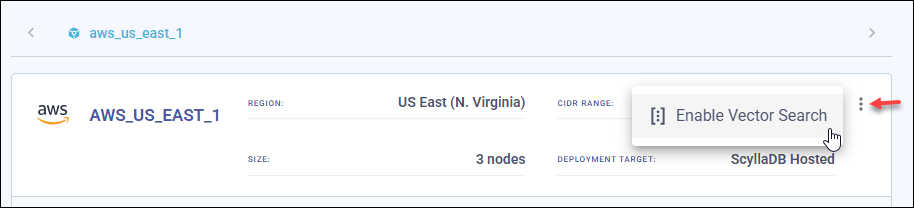
ScyllaDB Cloud will display available instance types with pricing.
Choose the indexing node instance types you want to add to your cluster and click Add Vector and Text Search Instances.
To use the ScyllaDB Cloud API, you need to generate a personal API token for authenticating requests to the API endpoints. See Create a Personal Token for Authentication for details.
Before you deploy new indexing nodes, you need to retrieve your account ID, cluster ID, and datacenter (DC) ID.
In the examples below, make sure to replace YOUR_API_TOKEN with your
actual access token value.
Get your account ID (
ACCOUNT_ID):curl -X GET "https://api.cloud.scylladb.com/account/default" \ -H "Authorization: Bearer YOUR_API_TOKEN"
Response looks like:
{
  "error": "",
  "data": {
     "accountId": 12345,
     "name": "my-account",
     "userId": "12345"
  }
}
Here 12345 is your
ACCOUNT_ID.List your clusters to get your cluster ID:
curl -X GET "https://api.cloud.scylladb.com/account/{ACCOUNT_ID}/clusters" \
   -H "Authorization: Bearer YOUR_API_TOKEN"
Response looks like:
{
  "data": {
    "clusters": [
       {
         "id": 6789,
         "name": "my-vector-cluster",
         "status": "ACTIVE"
       }
    ]
  }
 }
Here 6789 is your
clusterId.List the datacenters (DCs) for your cluster to get the DC ID.
curl -X GET "https://api.cloud.scylladb.com/account/{ACCOUNT_ID}/cluster/{CLUSTER_ID}/dcs" \
   -H "Authorization: Bearer YOUR_API_TOKEN"
Response looks like:
{
  "data": {
    "dataCenters": [
       {
         "id": 222,
         "name": "us-east-1a",
         "status": "ACTIVE"
       }
    ]
  }
}
Here 222 is the
dcIdyou need for vector store operations.Deploy indexing nodes.
curl -X POST "https://api.cloud.scylladb.com/account/{ACCOUNT_ID}/cluster/{CLUSTER_ID}/dc/{DC_ID}/vector-search" \
  -H "Authorization: Bearer YOUR_API_TOKEN" \
  -H "Content-Type: application/json" \
  -d '{
     "nodeCount": 1,
     "defaultInstanceTypeId": 176
  }'
Connect to the cluster with cqlsh.
Go to https://cloud.scylladb.com/, choose your cluster and go to the Connect tab.
Choose Cqlsh from the left menu and follow the instructions.
Resizing a Vector and Text Search Cluster
You can resize your Vector and Text Search deployment by changing the number of nodes or switching to a different instance type. Resizing is available through the ScyllaDB Cloud web UI or the ScyllaDB Cloud API.
Select the cluster where you want to resize Vector and Text Search to open the cluster details page.
Choose Resize Vector and Text Search from the three-dot menu in the datacenter overview section.
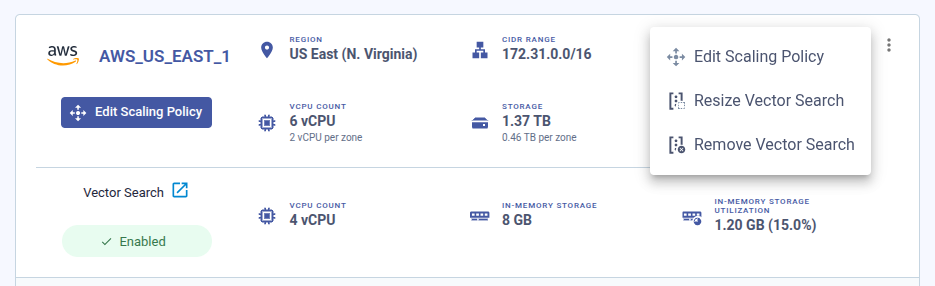
Choose the new instance type and/or adjust the number of indexing nodes.
Confirm the resize operation. The operation is asynchronous — you can monitor its progress in the cluster’s activity log.
Send a PATCH request to the Vector and Text Search endpoint for the
target datacenter. The request body accepts two parameters:
nodeCount(integer, 1–27) — the desired number of indexing nodes.defaultInstanceTypeId(integer) — the instance type ID. Use thetarget=VECTOR_SEARCHquery parameter on the deployment endpoint to list available instance types.
curl -X PATCH "https://api.cloud.scylladb.com/account/{ACCOUNT_ID}/cluster/{CLUSTER_ID}/dc/{DC_ID}/vector-search" \
   -H "Authorization: Bearer YOUR_API_TOKEN" \
   -H "Content-Type: application/json" \
   -d '{
      "nodeCount": 3,
      "defaultInstanceTypeId": 177
   }'
A successful response returns HTTP 202 (Accepted) with a
ClusterRequest object. You can
track the operation status using the
returned request ID.
Disabling Vector and Text Search
You can disable Vector and Text Search through the ScyllaDB Cloud UI or using the ScyllaDB Cloud API.
Choose Remove Vector and Text Search from the three-dot menu in the datacenter overview section to disable Vector and Text Search on your cluster.
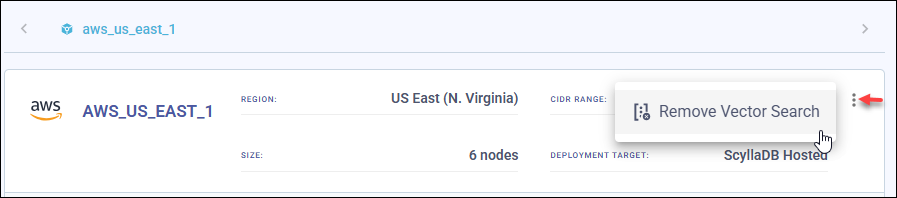
Disabling Vector and Text Search removes all the indexing nodes from your cluster.
Remove indexing nodes one by one from the cluster.
To remove all indexing nodes from a specific datacenter, send a
DELETE request to the Vector and Text Search endpoint. This operation
is asynchronous and returns a ClusterRequest object that you can
monitor for progress.
curl -X DELETE "https://api.cloud.scylladb.com/account/{ACCOUNT_ID}/cluster/{CLUSTER_ID}/dc/{DC_ID}/vector-search" \
   -H "Authorization: Bearer YOUR_API_TOKEN"
The request schedules the removal of all indexing nodes from the
specified datacenter. A successful response returns
HTTP 202 (Accepted) along with a ClusterRequest object that
describes the operation.
Monitoring Vector and Text Search Clusters
You can monitor Vector and Text Search clusters and their indexing nodes through the dedicated Vector and Text Search dashboard provided in the ScyllaDB Monitoring Stack. The dashboard is available from the Monitoring tab in your cluster’s view.
See Monitoring Clusters for details about the ScyllaDB Monitoring Stack.
Dashboard Overview
The Vector and Text Search dashboard provides an at-a-glance overview of vector search health and performance. It includes the following panels:
Status — Whether the vector store service is online (green) or offline (red).
# Indexes — The total number of vector indexes currently loaded across the cluster’s indexing nodes.
Disk Usage — Storage consumed by vector search data on the node’s disk, shown as a pie chart (used vs. free) and as an absolute value.
Memory Usage — Memory consumed by the vector search process, including in-memory HNSW indexes. Monitor this to determine when to scale up or enable quantization.
CPU Usage — CPU utilization of the indexing nodes. High CPU usage may indicate heavy query traffic or bulk index builds.
Further down, the dashboard shows panels for a single vector index:
Stored Vectors in index — The number of vectors in the index.
Index build rate — How fast the number of stored vectors changes. It is high while the index is being built over existing data and follows your write rate afterwards, so it shows when a build has finished.
Index requests rate, Average Latency, P95 Latency and P99 Latency — The ANN query load on the index and how long the indexing nodes take to answer it.
The dashboard supports filtering by datacenter (DC), node, and index using the variable selectors at the top of the page.
Vector and Text Search Metrics
Indexing nodes export application-level Prometheus metrics alongside standard infrastructure metrics. You can use these metrics to monitor query performance, index growth, and write throughput.
Application metrics
The following metrics are exported by the vector store service:
Metric |
Type |
Labels |
Description |
|---|---|---|---|
|
Histogram |
|
Latency of ANN search requests within the indexing node. Uses fine-grained buckets from 0.1 ms to 10 s. |
|
Gauge |
|
Current number of vectors in each index. Updated when the metrics endpoint is scraped. |
|
Counter |
|
Number of index modification operations. The |
Infrastructure metrics
Each indexing node also runs standard Prometheus exporters:
Node Exporter — hardware and OS-level metrics (CPU, memory, disk, network).
Process Exporter — per-process metrics (CPU, memory, I/O for the vector search process).
Example PromQL Queries
Use the following PromQL queries to monitor key aspects of your Vector and Text Search deployment:
Search latency (p99):
histogram_quantile(0.99,
  sum(rate(request_latency_seconds_bucket[5m])) by (le)
)
To get per-index latency, add label selectors:
histogram_quantile(0.99,
  rate(request_latency_seconds_bucket{keyspace="my_ks", index_name="my_idx"}[5m])
)
Search request rate (queries per second):
sum(rate(request_latency_seconds_count[5m]))
Vector insert throughput per index:
rate(index_modified_total{operation="insert"}[5m])
Total write throughput (inserts + updates + removes):
sum(rate(index_modified_total[5m])) by (keyspace, index_name)
Current number of vectors per index:
index_size
What to Watch For
Rising p99 search latency — May indicate memory pressure, growing index size, or resource contention during bulk writes. Consider quantization to reduce index memory, or scale to a larger instance type.
Sustained high insert/update rate — During bulk ingestion or initial index build, a high
index_modifiedrate is expected. If the rate remains elevated after ingestion completes, investigate whether your application is performing unnecessary re-inserts.Index size plateaus or drops unexpectedly — A sudden drop in
index_sizemay indicate bulk deletes or an index rebuild. Verify that the drop is intentional.High memory utilization — HNSW indexes are held in memory. As indexes grow, memory usage rises. If utilization stays above 80 %, consider enabling quantization to shrink the in-memory footprint, or resize to an instance type with more RAM.
Elevated CPU utilization — Spikes during bulk index builds or heavy query traffic are normal. Sustained high CPU outside of ingestion windows may mean the instance is undersized for the query load. Scale up the instance type or add more indexing nodes.
Disk usage approaching capacity — While the HNSW index lives in memory, indexing nodes also store data on disk. Monitor disk usage to avoid running out of space.
Status offline — If the Status panel shows offline, check that the indexing nodes are running and that network connectivity between storage nodes and indexing nodes is intact.
What’s Next
Working with Vector and Text Search — learn the CQL syntax for vector tables, indexes, and ANN queries.
Quick Start Guide — end-to-end walkthrough of your first similarity search.
Reference — supported instance types, CQL reference, and API endpoints.